It places real orders on live accounts. While it's copying, every order on your master is sent to every follower within a fraction of a second. One bad trade hits every linked account at once. Vest has no official copier, and every order it sends is your responsibility. Start with the smallest size.
01Install
About two minutes, on a computer. Use Chrome: it's the recommended browser, and every release is tested on it before it ships. Edge and Brave are built on Chrome and behave the same; Firefox works, but isn't tested the same way.
- Add the Tampermonkey extension from your browser's store: Chrome / Brave, Edge or Firefox. Click Add on the store page.Use these store pages, not download buttons on other sites: some of those are ads for unrelated software.
- Chrome, Edge, Brave: go to
chrome://extensions, open Tampermonkey's Details page and switch Allow User Scripts on.Without this, Tampermonkey installs the script but never runs it. Older browser versions call it Developer mode (top-right of the extensions page). Firefox doesn't need it. - Open the install link: vest-copier.user.js on GitHub. Tampermonkey shows an install page; click Install. From then on it keeps itself up to date.No link? Click the Tampermonkey icon, Create a new script, delete the template, paste the entire contents of
vest-copier.user.jsand press Ctrl+S. Paste the text itself: a .txt file opened in the browser isn't installed. - Open or refresh next.vestmarkets.com and log in. The STRATUH Copier panel appears on Vest's chart, on the left, and stays inside the chart. Drag its header to move it and its bottom-right corner to resize it. ⋯ → Docked on chart lets it float anywhere; minimised, it's a small pill with the state and one button (Flatten while copying).
Updating: when there's a newer version, a row above the activity line shows Install. Click it, click Update on Tampermonkey's page, then come back to the Vest tab: it reloads by itself. Do it while you're flat. Your settings are kept.
02Copy your first trade
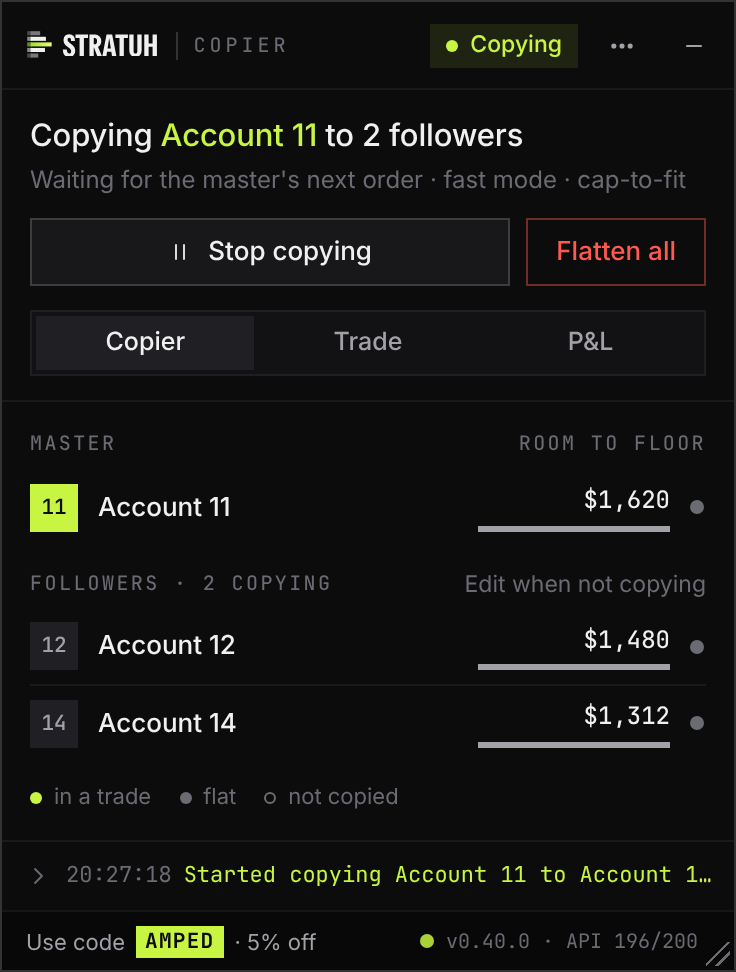
- The Copier tab opens on Choose accounts. Pick the account you'll trade with the round button: that's the master.
- Tick each account that should copy it. Those are the followers. Click Done.By default (Cap-to-fit) each follower is sized to its own equity, so sizes can differ. For identical contracts everywhere, pick 1:1 under Sizing (see Sizing). Change them later with Edit, while not copying.
- Set your leverage on Vest the way you'll trade, then click Start copying. On first use, read the risk terms, tick the box and click Accept and continue.Starting checks every account, then sets each follower's leverage to match the master. It works from any tab.
- Trade the master as you normally would, from Vest's order ticket or from the Trade tab. The sentence on top says who copies to whom, and the line under it the last copy ("4 of 4 filled"). The activity line at the bottom shows each order, then one line per follower and a fill summary such as
Fills 3/3 confirmed · avg slip 0.25 pt · max 0.50 pt. Click it for the full log. - Click Stop copying when you're finished. It does not close anything.
When Start copying refuses
The log names the account and the reason. Starting is allowed when everyone is flat, or when the master and followers already hold the same trade (same market, same direction): that trade is adopted and managed from then on. It refuses when a follower is in the opposite direction, holds a trade the master doesn't, or has a resting order. Fix that account on Vest and start again.
A follower with less than 30% of its drawdown left shows "Only $310 to its floor" in amber. It still copies; it's a heads-up.
03The Trade tab
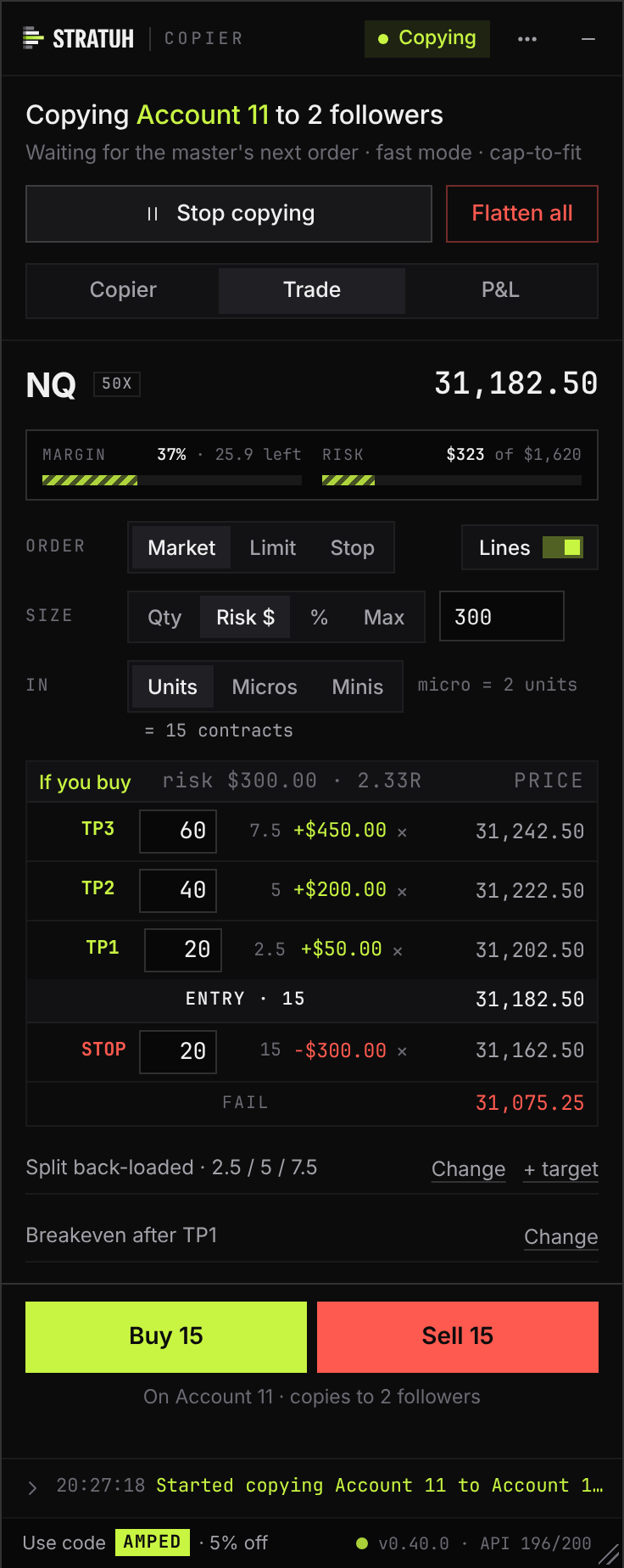
An order ticket built around points, for the market Vest is showing. It trades the master; while copying, followers copy it like any other master order.
| Part | What it does |
|---|---|
| Margin bar | How much of Vest's buying power your position uses, and how many contracts are left. The striped part previews the order you're about to send. |
| Risk bar | What your stop would lose, fees included, against the room left before your floor. Amber near the limit, red past it. Both bars use the tightest account. |
| Order | Market, Limit or Stop. With Limit or Stop, one click on the chart places it. Lines hides or shows your bracket on the chart. |
| Size | Qty, Risk $ (the panel sizes the order so hitting your stop loses that amount; $1 per point per contract) % (a share of the max: 25 is a quarter) or Max: the most the account can open, the same as Vest's 100%. |
| Minis, micros | On NQ, ES and RTY, size in Units, Micros or Minis, like Vest's own order form. An NQ micro is 2 units, an ES or RTY micro 5; a mini is 10 micros. Sizes stay whole. |
| Price ladder | Targets, entry, stop and the fail price in one table, for the side you're about to trade: point at Buy or Sell and it shows that side's prices. Type each level's points in the middle. The × on the stop or a target removes it: both are optional. The same bracket is drawn on Vest's chart as you set it; drag a line to change its points. |
| Split | One line under the ladder; Change picks Start (most on TP1), Even or End (most on the last target). + target adds another. |
| Auto BE | The next line; Change picks After TP1 or +pts, which move the stop to your entry. Lock adds points of profit beyond it (0 = exact breakeven). |
Each market keeps its own size, stop and targets: switch Vest's chart to ES and the tab switches to ES with your ES numbers. The panel warns when a size is more than the account can open, or when a stop-out would take the account past its floor before the stop fills. Right after a market order fills, the stop and targets move to exactly your points from the price you actually got. They're placed as Vest's own stop-loss and take-profit orders, so they still work if you close the tab.
Limits and stop orders on the chart
Pick Limit or Stop, click Buy or Sell, and the bracket follows your pointer on the chart; one click places the order there (or type the price and press Place; Esc cancels). A limit goes to Vest with its stop and targets. A stop order (a buy stop over the market, a sell stop under it) is kept by the copier, since Vest doesn't have them: once your level trades it sends the order, and followers copy it. A buy stop and a sell stop can wait together, and the first to fire cancels the other; the optional Slip caps how far past your level it may fill. Both show under Waiting orders with an × to cancel.
Stop orders live in the Vest tab. They only fire while it's open; a reload or closing it cancels them, and the log says so.
In a trade
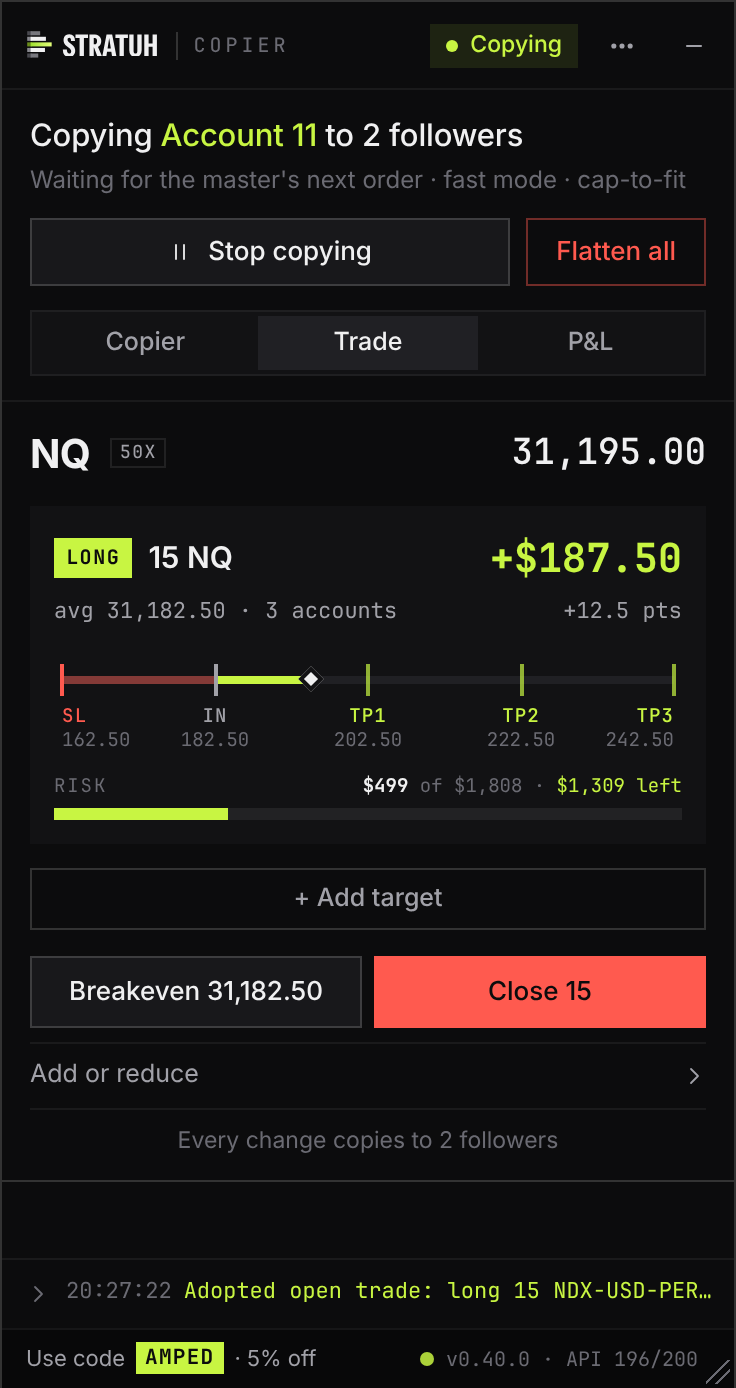
The position becomes the screen: live P&L, your stop, entry, the price now and your targets drawn to scale on one bar, and the risk left before your floor. + Add stop and + Add target put one on the trade: click the chart where it goes, or press Enter for your saved points. Right-clicking the chart at a price does the same (Add stop loss or Add take profit). Targets split the position evenly. Breakeven moves the stop to your average entry once price is clear of it. Close closes the master, and followers close with it while copying. Add or reduce opens chips for 25%, 50%, 100% of your position or MAX (the most that fits your margin and keeps a stop-out above the floor), then Add or Reduce. Your stop and targets stay where they are; move them on the chart.
Auto BE runs in your browser. Keep the Vest tab open for it to move your stop. It survives a page refresh and stops watching once the trade closes.
P&L and Share
The P&L tab starts with Today: your P&L since Vest's trading day began (20:00 ET), from Vest's own figures (a payout starts an account fresh). Then the total since start, what you keep after each profit split, and every account. Share turns your P&L into a picture you can paste into X, Discord or a group chat: Today (the total, the day's curve and your trades) or One trade, any profitable trade from the last 30 days on any of your accounts, with its exits and timeline. Copy image, or Save PNG. Hide amounts shows % or points instead of dollars, and Hide account numbers leaves the account tiles off. It shows account numbers and P&L only, never balances or logins.
04Sizing
Cap-to-fit (default)
Each follower is sized to its own equity, so you can mix account sizes. Every account takes the same percentage risk with the same stop distance.
Strict 1:1 (Edit or Settings)
Every follower gets the master's exact size. Followers must be the same size and type as the master. Simple and predictable for matched accounts.
// only when scaling down: × 0.95 buffer, rounded down to the market's size step
// within 0.5% of the master's equity: copied 1:1
Example: a $25k master trading 1 NQ drives a $5k follower at about 0.19 NQ. Both lose the same share of their account if the stop is hit. An account too small to hold even the minimum size is skipped, with a line in the log saying so.
Fast mode (Settings, on by default) sends the followers' entries the instant you send yours, instead of waiting for Vest to answer the master. Auto-flatten (off by default) closes followers left in a trade the master isn't in. Looks live under ⋯ → Appearance: text size, the chart bracket, chart marks, session shading and the STRATUH theme.
05What gets copied
| On the master | On each follower |
|---|---|
| Open, with stop and targets | Copied. Same prices; sizes scaled with Cap-to-fit. |
| Limit order | Copied, with its stop and targets. Moving or cancelling it on Vest's chart is copied too. |
| Add to position | Copied, scaled to the follower's size. |
| Partial close / close | Copied, in proportion. |
| Move, add or remove a stop or target | Copied to the matching order. |
| Stop or target fills | Each account's own stop and targets fill on Vest at the same prices. The log says which filled, on which accounts. |
| Anything while not copying | Not copied. |
| Orders Vest refuses on the master | Not copied. |
| Vest closing the master for you | Not copied. A breach or liquidation isn't an order you placed. A follower still in the trade a few seconds later is offered as Flatten / Keep. |
| An account fails | It drops out at once. A follower is removed and the others keep copying; if it's the master, copying stops. |
| Trades placed on a follower | Ignored. Only the master is watched. |
06Safety controls
Stop copying
Stops copying immediately. Open positions stay open.
Flatten all
Closes every position and cancels every order on all loaded accounts, instantly and with no confirmation. On every tab, and on the minimised pill while copying. Copying keeps running, so it's also a quick way out of a trade across every account.
Fill check
After each entry, the copier confirms every account actually filled. One that didn't is named in the log and dropped from that trade.
Paused
If a version has a problem, I can pause new trades from GitHub while the fix ships. The panel says so at the top, often with an Install button. Trades already open keep copying their exits, and Flatten all works.
Site check
When Vest updates its website, the copier checks itself: the panel shows the check for a few seconds (read-only), then says All clear and comes back. If something Vest changed breaks the copier, copying stays off until an update; use Vest's own panel meanwhile.
After a Vest update, do one small test before trading size: one follower, open with a stop, move the stop, close.
07Good habits
- Start with the smallest size across every account, and confirm the fills line before trading bigger.
- Size so that losing on every account at the same time is survivable.
- Set your stop when you enter, so every account is protected from the first second.
- Stop copying before placing a trade on the master that you don't want copied.
- Changed leverage or market? Stop and start copying again so followers match.
- Stop copying and go flat when you're done for the day.
08Troubleshooting
- The panel doesn't appear
- Check that the script is enabled in Tampermonkey, that Allow User Scripts is on (step 2), and that you're on next.vestmarkets.com. Then refresh.
- Can't tick a follower
- It's a different size or type than the master. Pick Cap-to-fit under Sizing in Edit, or pick matching accounts.
- "… did NOT fill"
- Vest accepted the order but didn't execute it, usually because the account lacks margin for that size. The margin bar on the Trade tab shows how much fits.
- Breakeven stays grey
- Price has to be clear of your entry first, since Vest refuses a stop the price has already passed. Hover the button for the reason.
- Amber status dot (bottom right)
- The copier is checking itself after a Vest update. Give it a few seconds. Red means copying is off until a copier update: send the file from the log's Download.
- Need a hand
- Ask in the Discord.
- Something looks wrong
- ⋯ → Report a problem (or Get help next to a problem), describe what happened and click Save report & open issue. It saves one report file and opens a GitHub issue with your description filled in: drag the file in and submit. The file has no passwords or login tokens, and account ids are replaced by names.